Why Is My Laptop Touchpad Not Working? 7 Proven Fixes
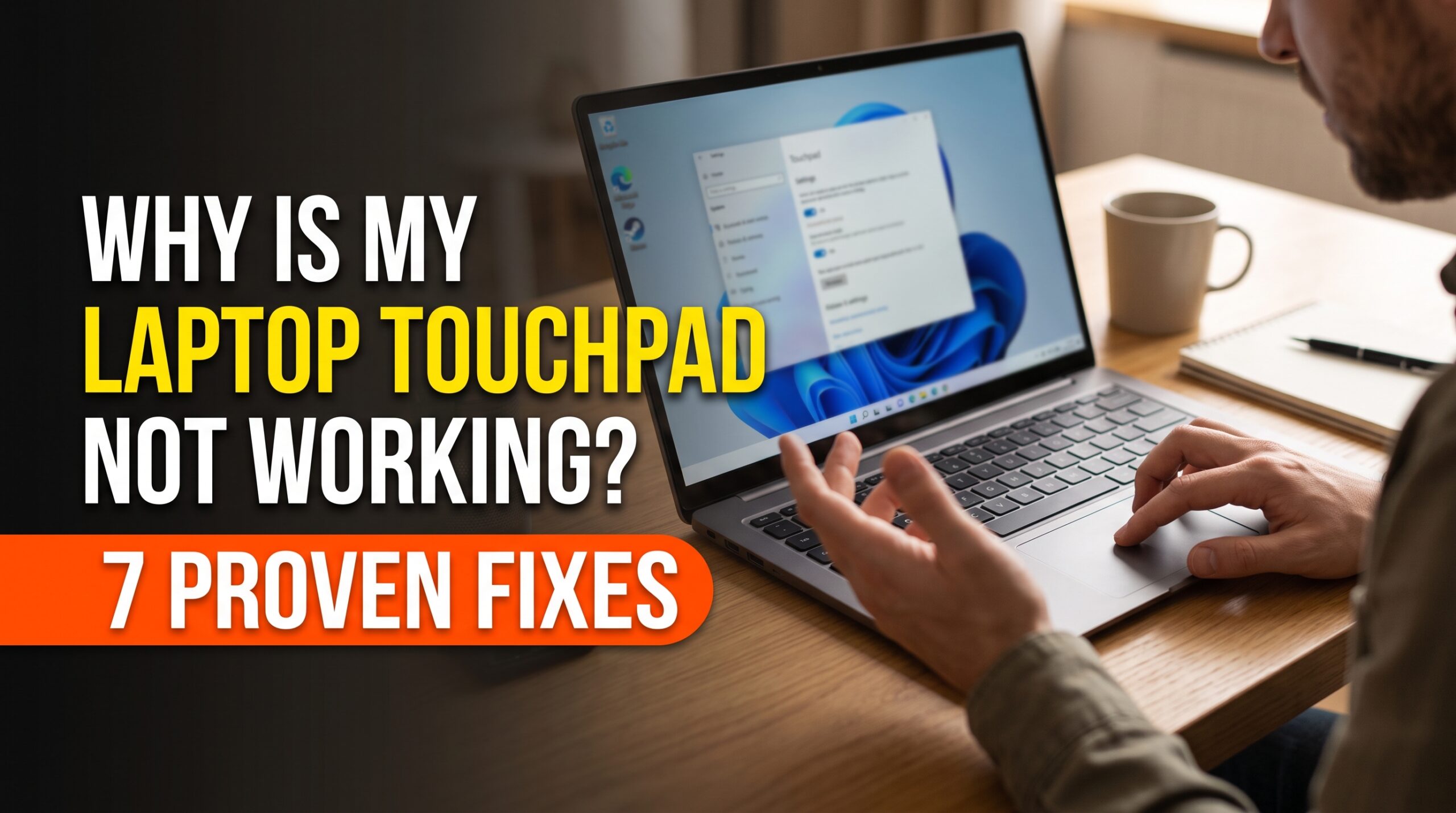
Why is my laptop touchpad not working was the question I found myself asking mid-task, watching the cursor sit completely frozen no matter how much I tapped or dragged my finger across the surface. After digging into the actual causes, I found this is one of those problems where the fix is almost always something small and specific, rather than a sign the hardware itself has failed.
Here’s what’s actually behind it.
The Touchpad Has Been Accidentally Disabled
This is, by a wide margin, the most common reason why is my laptop touchpad not working. Most laptops have a dedicated function key combination (often F5, F7, or F9 depending on the brand) that toggles the touchpad on and off, and it’s surprisingly easy to press this combination accidentally while typing.
Fix: Check your laptop’s function key row for a touchpad icon, and try pressing it along with the Fn key to toggle the touchpad back on.
A Connected Mouse Is Automatically Disabling It
Many laptops include a setting that automatically disables the built-in touchpad whenever an external mouse is connected, which is useful for some users but confusing if you don’t realize the setting exists. This is a frequent answer to why is my laptop touchpad not working specifically after plugging in a wireless or wired mouse.
Fix: Check your touchpad settings (usually found under Mouse & Touchpad in Windows settings) for an option like “disable touchpad when a mouse is connected,” and turn it off if you want both to work simultaneously.
Outdated or Corrupted Touchpad Drivers
Touchpad drivers can become outdated or corrupted over time, particularly after a Windows update, leading to the touchpad becoming unresponsive even though the hardware itself is completely fine. This is a commonly overlooked reason why is my laptop touchpad not working right after a system update.
Fix: Open Device Manager, locate your touchpad under “Mice and other pointing devices,” right-click, and select “Update driver.” If that doesn’t help, uninstalling and restarting the laptop often forces it to reinstall a fresh driver automatically.
A Recent Windows Update Caused Compatibility Issues
Occasionally, a Windows update introduces a bug that specifically affects touchpad functionality on certain laptop models, particularly in the days immediately following a major update rollout.
Fix: Check if a Windows update was installed around the time the issue started, and look for a subsequent patch update, since manufacturers typically address these compatibility bugs within a few weeks.
If your entire laptop feels sluggish beyond just the touchpad, our guide on why is my computer running so slow covers broader performance issues.
Physical Debris Trapped Under the Touchpad Surface
Crumbs, dust, or small debris trapped under or around the touchpad’s edges can interfere with its sensitivity, causing it to become unresponsive or behave erratically in specific areas.
Fix: With the laptop powered off, gently clean around the touchpad’s edges using a soft, dry cloth, being careful not to press too hard on the surface itself.
BIOS Settings Affecting Touchpad Function
In rarer cases, touchpad functionality can be affected by settings within the laptop’s BIOS, particularly after a BIOS update or a factory reset that altered default configurations.
Fix: Restart your laptop and enter BIOS settings (usually by pressing a specific key like F2 or Delete during startup), checking for any touchpad-related settings that may have been disabled.
A Failing Touchpad Component
If you’ve tried everything above and the touchpad remains unresponsive, particularly in an older laptop that’s seen years of heavy daily use, the physical touchpad hardware itself may have genuinely failed.
Reality check: Touchpad replacement typically requires professional repair or replacing the laptop’s entire palm rest assembly, so this is a reasonable point to consult a technician rather than continuing to troubleshoot independently.
Quick Diagnostic Order
- Check if the touchpad has been accidentally disabled via function keys
- Verify whether a connected mouse is automatically disabling it
- Update or reinstall touchpad drivers through Device Manager
- Check if a recent Windows update coincided with the issue starting
- Clean around the touchpad’s edges for trapped debris
- Check BIOS settings for any touchpad-related configuration
- If nothing else works, consider professional inspection for hardware failure
Working through this list in order resolves why is my laptop touchpad not working for the vast majority of users without needing a repair appointment.
Final Thoughts
Why is my laptop touchpad not working almost always comes down to something software-related — an accidentally disabled setting, an outdated driver, or a recent update conflict — rather than a genuinely broken component. Start with checking the function key toggle and driver status, since these two factors resolve the issue for most people before any deeper troubleshooting becomes necessary.
For official touchpad troubleshooting guidance, Microsoft’s Windows support page offers helpful step-by-step resources.
FAQs
Q: Why did my touchpad stop working right after a Windows update?
This typically points to a driver compatibility issue introduced by the update, which usually gets resolved through a subsequent patch or manual driver reinstallation.
Q: Is it normal for touchpads to become less responsive over time?
Gradual sensitivity decline can happen with heavy daily use over several years, though sudden unresponsiveness usually points to a software or settings issue rather than natural wear.
Q: Can I use my laptop normally without a working touchpad?
Yes, connecting an external USB or wireless mouse provides a reliable workaround while you troubleshoot or arrange a repair for the touchpad itself.