Why Is My Smart TV Not Connecting to WiFi? 7 Proven Fixes
Why Is My Smart TV Not Connecting to WiFi? 7 Proven Fixes
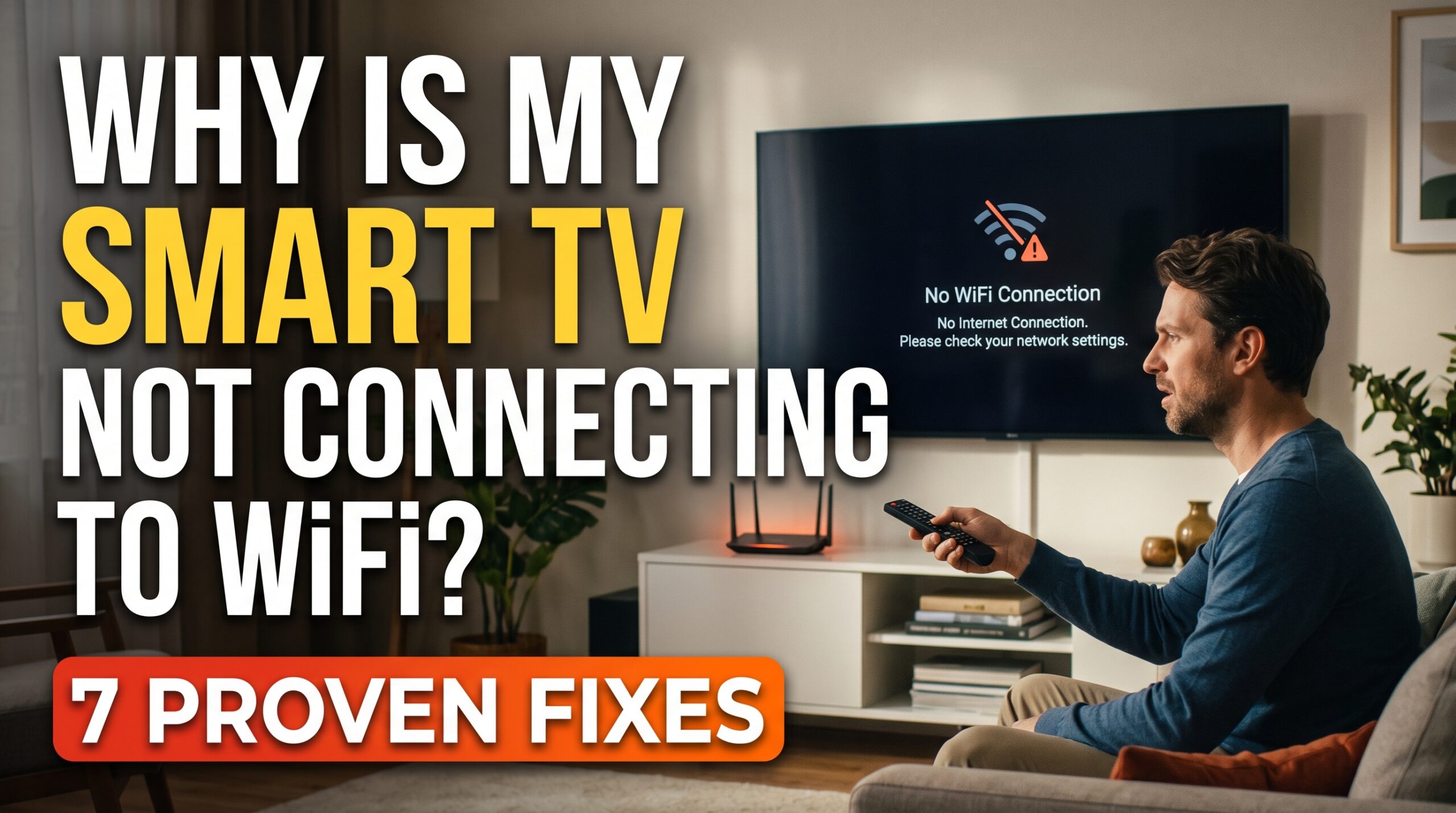
Why is my smart TV not connecting to WiFi was the exact frustration I faced on movie night, watching the TV spin endlessly trying to connect while my phone sat right next to it, fully connected to the same network without any issue at all. After digging into the actual causes, I found this is one of those problems where the fix is almost always something specific to the TV itself, rather than a sign your entire home network is broken.
Here’s what’s actually behind it.
Entering the Wrong WiFi Password
This sounds almost too simple, but it’s genuinely one of the most common reasons why is my smart TV not connecting to WiFi. Typing a password using a TV remote is far more error-prone than typing on a phone or computer, and a single mistyped character prevents the connection entirely.
Fix: Carefully re-enter your WiFi password, paying close attention to capitalization and special characters, which are easy to mistype using a remote’s on-screen keyboard.
The TV Is Too Far From the Router
Smart TVs often have weaker WiFi antennas compared to phones or laptops, meaning they’re more sensitive to distance and physical obstacles between the TV and your router. This is a frequent answer to why is my smart TV not connecting to WiFi, particularly in larger homes or rooms farther from the router.
Fix: If possible, temporarily move your router closer to the TV to test whether distance is the actual issue, or consider a WiFi extender for a more permanent solution.
Router Broadcasting on an Incompatible Band
Some older smart TVs only support the 2.4GHz WiFi band and can’t connect to routers broadcasting exclusively on 5GHz, or vice versa with certain configurations. This is a commonly overlooked reason why is my smart TV not connecting to WiFi, especially after upgrading to a newer router.
Fix: Check your TV’s specifications for which WiFi bands it supports, and verify your router is broadcasting on a compatible band, adjusting router settings if needed.
Outdated Smart TV Software
Running outdated firmware on your smart TV can cause connectivity issues, particularly if your router’s firmware has been updated more recently and introduced compatibility changes the TV’s older software doesn’t handle well.
Fix: Check your TV’s settings menu for available software updates, which sometimes require a direct Ethernet connection if the TV can’t connect to WiFi at all initially.
Too Many Devices Already Connected to the Router
Routers have a maximum number of devices they can handle simultaneously, and if your network is already at capacity with phones, laptops, smart home devices, and other electronics, your TV might struggle to establish a new connection.
Fix: Disconnect a few unused or rarely used devices from your network temporarily to see if this resolves the TV’s connection issue.
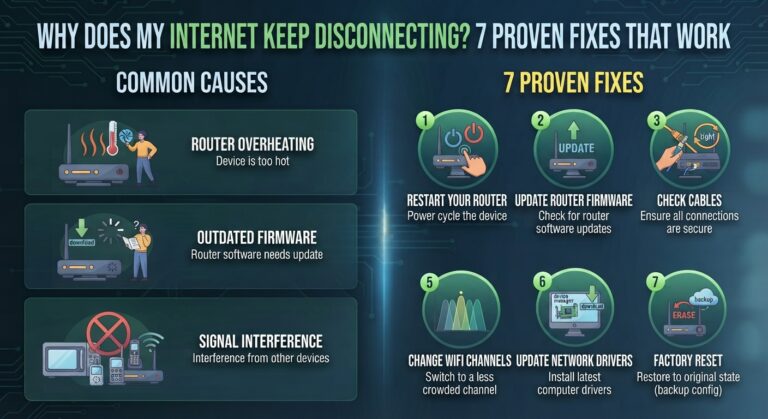
This same kind of network overload can affect other devices too — our guide on why does my internet keep disconnecting covers broader connectivity issues.
Router Needs a Restart
Routers can develop minor glitches over time that specifically affect new device connections, even while existing connected devices continue working normally. This is a simple but genuine reason why is my smart TV not connecting to WiFi that a quick restart often resolves.
Fix: Unplug your router for about 30 seconds, then plug it back in and wait for it to fully restart before attempting to connect your TV again.
MAC Address Filtering Blocking the TV
Some routers have security settings that only allow specific, pre-approved devices to connect, identified by their MAC address. If this filtering is enabled and your TV isn’t on the approved list, it will be unable to connect regardless of password accuracy.
Fix: Check your router’s security settings for MAC address filtering, and add your TV’s MAC address (usually found in the TV’s network settings menu) to the approved devices list if this feature is active.
Quick Diagnostic Order
- Carefully re-enter your WiFi password
- Check the distance and obstacles between the TV and router
- Confirm your TV supports your router’s broadcasting band
- Check for and install any available TV software updates
- Reduce the number of devices connected to your network
- Restart your router completely
- Check for MAC address filtering in your router’s security settings
Working through this list in order resolves why is my smart TV not connecting to WiFi for the vast majority of households without needing a technician visit.
Final Thoughts
Why is my smart TV not connecting to WiFi almost always comes down to something specific to the TV’s connection setup — a password typo, band incompatibility, or outdated software — rather than a broader network failure. Start with re-entering your password carefully and checking band compatibility, since these two factors resolve the issue for most households before any deeper troubleshooting becomes necessary.
For official smart TV connectivity guidance, Samsung’s official support page offers helpful troubleshooting resources applicable to many smart TV brands.
FAQs
Q: Why does my phone connect to WiFi fine but my smart TV won’t?
This typically points to band incompatibility or distance issues, since smart TVs often have weaker antennas than phones and are more sensitive to connection range.
Q: Should I use an Ethernet cable instead of WiFi for my smart TV?
If your TV is near your router, a wired Ethernet connection is generally more stable and eliminates WiFi-related connectivity issues entirely.
Q: How often should I restart my smart TV to prevent connection issues?
Restarting occasionally, particularly if you notice connectivity becoming unstable, helps clear minor software glitches that can accumulate over time.